Ubuntu is a widely used Linux-based operating system that provides its users with several useful features and tools. However, one common problem that Ubuntu users encounter is the microphone not working.
A microphone is a crucial tool in today’s digital era, whether you are video conferencing, recording audio, or using voice commands. If your microphone is not working, it can be frustrating and impact your productivity.
In this article, we will discuss some troubleshooting steps that you can take to fix the microphone not working issue in Ubuntu.
Check the Microphone Hardware
Before looking into software-related solutions, it’s important to check the microphone hardware itself. First, make sure that the microphone is properly connected to your computer.
You may want to try unplugging and plugging it back in to ensure it is connected securely.
In addition, you can test the microphone on another device to see if it is working correctly. If it is not working on another device, the issue may be with the microphone itself, and you may need to replace it.
It’s also important to check if the microphone is compatible with Ubuntu. You can check the manufacturer’s website or the Ubuntu compatibility list to see if your microphone is supported.
Check Microphone Settings in Ubuntu
If the microphone hardware is not the issue, the next step is to check the microphone settings in Ubuntu.
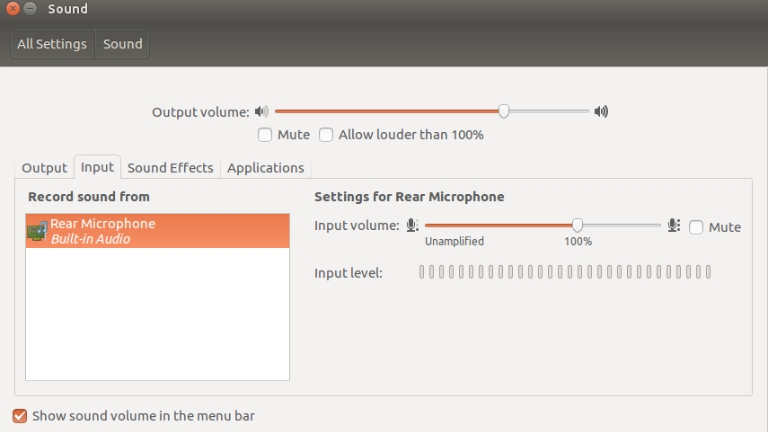
First, click on the volume icon located at the top right corner of the screen, and select “Sound Settings.” From there, navigate to the “Input” tab and check whether the microphone is detected. If it is detected, check the microphone volume settings, and ensure they are not set too low.
Next, verify that the correct microphone is selected. Sometimes, Ubuntu may detect multiple microphones, so make sure to choose the correct one.
Additionally, look for any mute settings that may be enabled.
Update or Reinstall Sound Drivers
If the microphone issue still persists, you can try resetting the PulseAudio sound server. Open the terminal and enter the following command:
sudo apt-get remove --purge alsa-base pulseaudio

sudo apt-get install alsa-base pulseaudio

sudo alsa force-reload
This command will stop and restart the PulseAudio sound server and reload the ALSA sound driver. Once the command is executed, restart your computer and check if the microphone is working.
If none of these solutions work, you can try using a different microphone or contacting Ubuntu support for further assistance.
Install and Use Pavucontrol
To install Pavucontrol, open the terminal and enter the following command:
sudo apt-get install pavucontrol
Once Pavucontrol is installed, open it and go to the “Input Devices” tab. From there, you can adjust the input volume, mute settings, and other advanced settings for your microphone. You may also need to select the correct input device and profile for your microphone.
After adjusting the settings in Pavucontrol, check if the microphone is working properly.
Check for Application-Specific Issues
Finally, it is possible that the microphone issue is specific to an individual application. For example, some video conferencing applications may have their own microphone settings that override the system settings.
Check the microphone settings in the individual applications and make sure they are not muted or set too low.
Additionally, check if the application is blocking the microphone in any way. If so, try reinstalling the application.
Conclusion
In Conclusion, the microphone not working issue in Ubuntu can be resolved by taking a series of troubleshooting steps. First, check the microphone hardware connection and compatibility with Ubuntu.
Then, examine the microphone settings in Ubuntu, including the volume, the input source, and the mute settings. If those steps don’t work, try updating or reinstalling the sound drivers, or installing and using Pavucontrol.
Finally, check the settings in individual applications that use the microphone, such as video conferencing tools. By following these steps, you should be able to resolve the microphone not working issue in Ubuntu and continue using your microphone without any problems.