Direct Answer
When Apple Math Notes 3D graphs don’t appear or behave as expected, start by checking whether the feature is available on your device and software version. Then test a simple equation before changing an existing note. If graphing works but your notes or exports look wrong, troubleshoot those issues separately instead of rebuilding everything at once.

Key Takeaways
- Check device and software compatibility before troubleshooting the equation.
- Test a simple equation to determine whether the problem affects one note or graphing in general.
- Keep graph display issues separate from folder, tag, and export problems.
- Use Apple’s current support instructions when controls are missing or differ from the expected interface.
- Test changes on a small sample before reorganizing or exporting a large collection of notes.
Start by Identifying the Problem
A missing graph button, an equation that won’t produce a surface, and an exported file with missing content are different problems. Treating them as one issue can lead to unnecessary work.
Use this quick guide to choose where to begin.
| What you’re seeing | What to check first |
|---|---|
| Math Notes or its graph controls are missing | Device and software compatibility |
| The equation appears, but no surface is created | Equation format and graphing options |
| An existing note behaves differently from a new one | Whether the issue is specific to that note |
| Related notes are difficult to locate | Folder structure, tags, and Smart Folders |
| Exported content looks incomplete | The exported file and its destination app |
Work through one category at a time. Once you identify where the problem occurs, the next step becomes much clearer.
Troubleshooting Apple Math Notes 3D Graphs
Problem 1: You can’t find Math Notes or the 3D graph option
Begin with the basics rather than repeatedly tapping through menus.
- Check the iPhone model and installed software version.
- Open Calculator and look for the Math Notes mode.
- Open a math note and enter a supported equation.
- Select the equation and check the available actions for a graphing option.
The exact controls and feature availability may vary by software version and device. If Math Notes or the expected graph option is absent, consult Apple’s current support documentation before assuming the app is malfunctioning.
Problem 2: Your equation won’t produce a graph
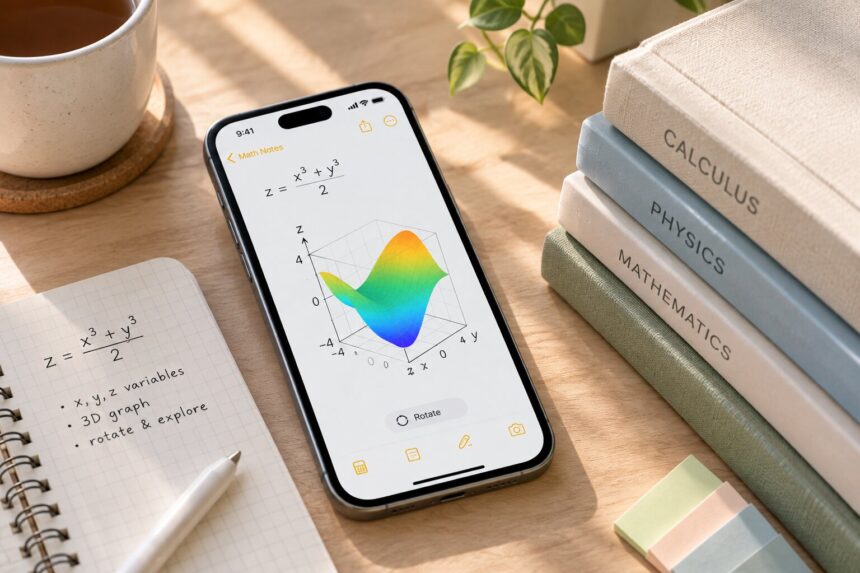
A useful first test is a straightforward equation that defines (z) using (x) and (y). For example:
[
z=\frac{x^3+y^3}{2}
]
Enter the equation in Math Notes, then select it and check whether the option to insert a 3D graph appears.
If the test works, return to your original expression and inspect its notation. Check for missing operators, misplaced parentheses, or a format that the graphing feature may not recognize.
If the test fails too, return to the compatibility and interface checks. Testing a simple expression first helps you avoid rewriting a complicated equation when the actual issue may be elsewhere.
Problem 3: The graph appears, but you can’t inspect it as expected
Once a surface has been inserted, try manipulating the graph directly. Dragging the surface can change your viewing angle, while dragging an edge may allow you to reposition it.
If the controls differ from what you expect, check the current instructions for your software version. Don’t assume every version uses identical gestures or menus.
For comparisons between equations, add functions carefully and change one variable or feature at a time. This makes it easier to understand which change caused a visible difference.
If the Graph Works, Check the Note Itself
Sometimes the graphing feature is fine, but the surrounding note has become difficult to manage. That calls for an organization fix, not a graphing fix.
Simplify your folder structure
Start with a few broad categories, such as Calculus, Physics, and Research. Add subfolders only when a category contains enough material to justify them.
Too many levels can make notes harder to find. If you frequently forget where something belongs, simplify the structure instead of adding another folder.
Make tags consistent
Tags are helpful when a note belongs to more than one subject or project. Choose a small set of names and use them consistently.
For example, #calculus can connect graphing exercises stored in different folders. Avoid creating several nearly identical tags for the same topic.
Review Smart Folder filters
Smart Folders can automatically gather notes that match selected criteria. If a note isn’t appearing where expected, inspect the Smart Folder’s filters and check whether the note actually matches them.
This is particularly useful when your folder system is sound but your filtered collections seem incomplete.
When Markdown Export Doesn’t Look Right
If the original note works but the exported document doesn’t, leave the graphing settings alone. Focus on the export instead.
Apple Notes offers Markdown export, but you should verify the result before relying on it for technical documentation.
Try a small test:
- Choose one note containing ordinary text and an equation.
- Export it using the available Markdown option in Notes.
- Open the resulting file in the application where you intend to use it.
- Compare the text, equation, links, images, and formatting with the original.
- Check whether the graph itself is present and whether any interactive behavior remains.
Markdown may not preserve every specialized mathematical or interactive feature. If the surface is missing, add an appropriate screenshot or a written description when preparing the material for someone else.
Keep the original math note when you need to return to the interactive graph. Treat the exported document as a separate version that may need adjustments.
A Better Way to Keep Technical Notes Maintainable
Once graphing and export are working, make future troubleshooting easier by recording enough context to reproduce your work.
For each important graph, save:
- Purpose: What question were you investigating?
- Expression: Which equation produced the surface?
- Result: What did you observe while inspecting the graph?
- Follow-up: What would you test or change next?
Give the note a meaningful title, such as “Cubic Surface Investigation” or “Comparing Equation Variations.” Use folders for broad subjects, tags for cross-topic connections, and Smart Folders for collections you revisit regularly.
This record helps you distinguish an equation problem from a display issue later—and makes the note useful even if you haven’t opened it in months.
Frequently Asked Questions
Why aren’t Apple Math Notes 3D graphs appearing?
First, check whether your device and software support the feature. Then confirm that you’re using Math Notes and that the equation is in a supported format. If a simple test equation also fails, consult Apple’s current support instructions.
Do I need to recreate a note if its graph doesn’t work?
Not immediately. Test a simple equation in a new note first. If that works, investigate the original expression or note before rebuilding it.
Can folders or tags fix a missing graph?
No. Folders, tags, and Smart Folders help organize notes; they don’t resolve graphing compatibility or equation-entry problems.
Why is my graph missing from a Markdown export?
An exported Markdown file may not preserve the original graph’s full visual or interactive features. Compare the export with the source note and add a screenshot or explanation if necessary.
Is Math Notes the same as the Notes app?
No. Math Notes is accessed through Calculator for mathematical work, while the Notes app provides general note-taking, folders, tags, Smart Folders, and export tools.
The Bottom Line
When Apple Math Notes 3D graphs don’t work as expected, diagnose the problem before changing your notes. Check compatibility, test a simple equation, and isolate graphing issues from organization and export issues.
You might also like:
- The Smart Way to Switch to a New iPhone 18
- Mastering Apple Notes AI Features
- Using Apple’s Live Rewind Audio Intelligence
- Related reading: Another practical Apple app walkthrough; How to connect productivity tools on iPhone.