Direct Answer
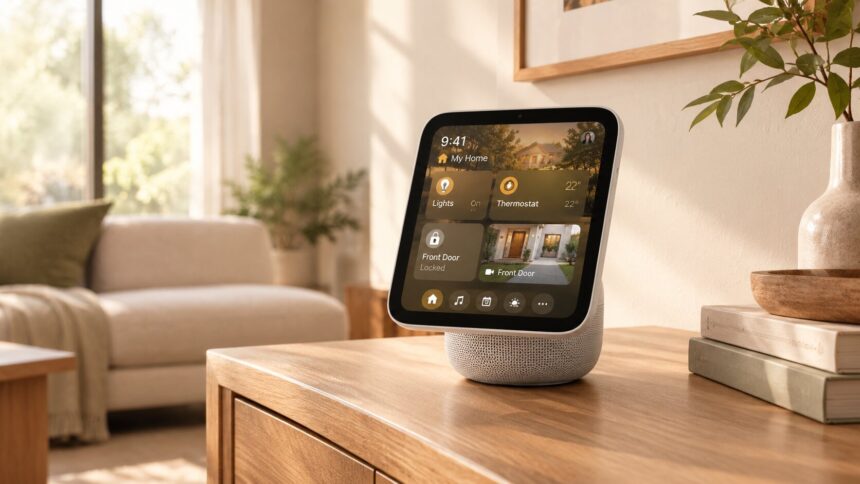
Choosing connected devices for a new smart-home system requires more than checking whether a product has Wi-Fi. Apple HomeView works with compatible Apple Home and Matter accessories, but individual models may have different requirements, bridges, and subscription features. Reviewing those details before purchasing helps build an Apple HomeView smart home with fewer compatibility surprises.

Key Takeaways
- Check the exact accessory model rather than relying on its product category.
- Verify Apple Home or Matter support before purchasing.
- Identify required bridges, subscriptions, and firmware updates.
- Test one device before buying several from the same product family.
- Keep compatibility information in one worksheet for future troubleshooting.
Understand What Compatibility Actually Means
A smart accessory may connect to a home network without supporting Apple’s smart-home platform. Its manufacturer app may provide controls that are not available through Apple Home or HomeView.
Check the exact product model and its supported features. Lights, thermostats, locks, blinds, cameras, and sensors may have different integration requirements.
Matter support and Apple Home compatibility are useful starting points, but they do not automatically guarantee that every manufacturer feature will appear on the HomeView display.
Create an Accessory Compatibility Worksheet
Before purchasing devices, record the information needed to evaluate each product.
| Information | What to check |
|---|---|
| Manufacturer and model | Exact product identification |
| Apple Home support | Whether the model works with Apple Home |
| Matter support | Supported Matter version, if applicable |
| Firmware | Required software version and update availability |
| Bridge | Whether additional hardware is necessary |
| Subscription | Whether important features require a paid plan |
| Intended room | Where the accessory will be installed |
| Main function | Which controls you expect to use through HomeView |
This record makes it easier to compare products and identify dependencies. It also helps when troubleshooting a device that stops responding later.
Check Requirements for Different Accessory Types
Lighting and Climate Controls
For lights and thermostats, check which adjustments are supported through Apple Home. A product may offer advanced scheduling or customization in its manufacturer’s app that is not available through HomeView.
Locks and Blinds
These accessories deserve additional attention because their controls affect home access and privacy. Verify supported operations, required bridges, and household permissions before relying on them.
Cameras and Sensors
Camera compatibility may depend on the exact model, recording features, and subscription requirements. HomeView’s Home Camera face can display up to nine compatible video feeds. Certain encrypted recognition features may also require compatible cameras and a supported iCloud+ subscription.
Do not assume that every camera or sensor feature will work simply because the device connects to the network.
Test Before Expanding the Installation
After confirming compatibility, begin with one accessory from each product family. Add it through Apple Home, assign it to the correct room, and test the controls you expect to use.
Check touchscreen operation and supported Siri AI requests separately. For example, confirm that a light switches correctly and that a clear voice command identifies the intended room.
If the product requires a bridge or subscription, verify that those dependencies are active. Testing a single device before purchasing several helps avoid repeating an unsuitable configuration throughout the house.
Consider Household Access and Personalization
HomeView can recognize up to six people and provide personalized home screens. Personal-context requests may require a registered Apple Intelligence-enabled iPhone or iPad on the same home Wi-Fi network, recently unlocked and running supported software and languages.
Consider which household members need access to each accessory, particularly cameras and locks. A product can be compatible while still requiring careful permission settings.
Review Privacy and Security Requirements
Apple says Siri requests can be processed on the device or through Private Cloud Compute, where request data is not stored or made accessible to Apple or others. Some compatible camera-recognition features are described as end-to-end encrypted.
However, the security of an Apple HomeView smart home also depends on connected accounts and third-party products. Review account access, camera notifications, recording settings, and accessory software updates before depending on the system.
For the official feature list, compatibility details, and availability information, see Apple’s HomeView announcement in the Apple Newsroom.
Frequently Asked Questions
Does every Wi-Fi smart device work with HomeView?
No. A Wi-Fi connection does not guarantee Apple Home or Matter compatibility. Check the exact product model.
Can HomeView use accessories from different manufacturers?
Yes, when the specific products support Apple Home or Matter. Some may require an additional bridge.
Can HomeView display multiple cameras?
Yes. The Home Camera face can show up to nine compatible video feeds simultaneously.
How many people can use HomeView?
It can recognize up to six people and provide personalized home screens. Some personal-context features require a compatible registered iPhone or iPad.
When is Apple HomeView expected to be available?
Apple announced HomeView in October 2026, with availability scheduled to begin November 13. Regional availability may vary.
The Bottom Line
A successful Apple HomeView smart home starts with choosing accessories that work together. Verify exact models, check bridges and subscription requirements, and test individual products before expanding the installation. Keeping a compatibility worksheet also makes future upgrades and troubleshooting easier.
Also worth checking out:
- How to Use 3D Graphs in Apple Math Notes and Organize Your Notes
- How to Use Apple’s Live Rewind Audio Intelligence?
- How Do You Smoothly Switch to a New iPhone 18?
- Related reading on techharvey.com: AI privacy settings worth reviewing; Affordable connected technology ideas.