TechHarveyTechHarvey
  • Business
  • Computers
  • Cryptocurrency
  • Education
  • Gaming
  • News
  • Sports
  • Technology
Reading: How do I connect my Wyze Cam v3 to my phone?
Share
Aa
TechHarveyTechHarvey
Aa
  • Business
  • Computers
  • Cryptocurrency
  • Education
  • Gaming
  • News
  • Sports
  • Technology
Search
  • Business
  • Computers
  • Cryptocurrency
  • Education
  • Gaming
  • News
  • Sports
  • Technology
© 2022 Foxiz News Network. Ruby Design Company. All Rights Reserved.
TechHarvey > blog > How do I connect my Wyze Cam v3 to my phone?
blog

How do I connect my Wyze Cam v3 to my phone?

Lucas Anderson
Lucas Anderson
Share
4 Min Read
SHARE

So, you just got your new Wyze Cam v3 and can’t wait to set it up? No worries! Connecting it to your phone is super easy. Follow this guide, and you’ll be up and running in no time.

What You Need

Before you start, make sure you have everything ready:

  • Your Wyze Cam v3
  • A power adapter and cable
  • A Wi-Fi network (2.4 GHz)
  • The Wyze app installed on your phone

Now, let’s get started!

Step 1: Download the Wyze App

First, you need the Wyze app on your phone. It’s available for both Android and iOS. You can find it on the Google Play Store or Apple App Store.

Once downloaded, open the app and sign in or create a new account.

Step 2: Plug in Your Wyze Cam v3

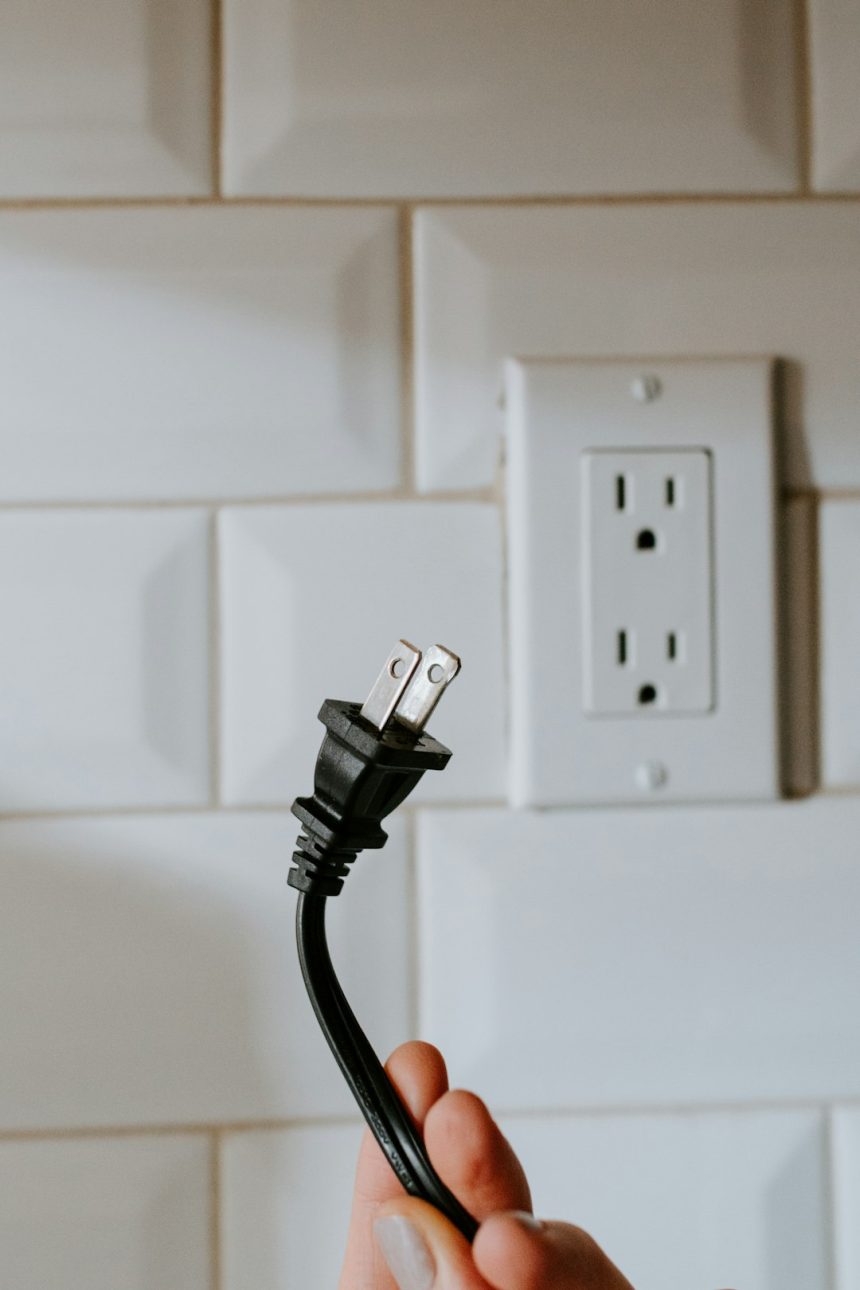
Connect the camera to a power source using the provided USB cable and power adapter. Wait for the yellow light to flash on the camera. This means it’s ready to connect.

[ai-img]wyze cam v3, power cable, setup ready[/ai-img]

Step 3: Add a New Device

Now, open the Wyze app and follow these steps:

  • Tap the “+” button in the top-left corner.
  • Select “Add Device.”
  • Tap “Cameras” and choose Wyze Cam v3.

Your Wyze app will now guide you through the setup process.

Step 4: Put Your Camera in Setup Mode

Press and hold the setup button on the bottom of the camera. You should hear “Ready to connect.”

In the app, tap “Next” to proceed.

Step 5: Connect to Wi-Fi

Select your Wi-Fi network in the app and enter the password. Your Wyze Cam v3 only supports 2.4 GHz networks, so make sure you are connecting to the right one.

Once entered, tap Next.

Step 6: Scan the QR Code

The app will now generate a QR code. Hold your phone in front of the Wyze Cam so it can scan the code.

When the camera scans it successfully, you’ll hear “QR code scanned, please wait.” Tap Next and wait for the camera to connect.

[ai-img]qr code, wyze cam, scanning screen[/ai-img]

Step 7: Name Your Camera

Once connected, give your camera a name like “Front Door,” “Living Room,” or something fun! Then tap Finish.

Step 8: Test Your Camera

Now, go to the Wyze app home screen and tap on your new camera. You should see a live video feed!

Try adjusting the camera’s angle and test the night vision mode to make sure everything works perfectly.

Bonus Tips

  • If the camera won’t connect, double-check the Wi-Fi password and try again.
  • Only use a 2.4 GHz Wi-Fi signal, as 5 GHz is not supported.
  • Keep the Wyze Cam within range of your Wi-Fi router for a better connection.

That’s it! You’re all set up. Now, sit back and enjoy watching over your home from your phone.

[ai-img]happy person, smartphone, security camera view[/ai-img]

Have fun and stay secure with your Wyze Cam v3!

Lucas Anderson February 13, 2025
Share this Article
Facebook Twitter Whatsapp Whatsapp Telegram Copy Link Print
Leave a comment Leave a comment

Leave a Reply Cancel reply

Your email address will not be published. Required fields are marked *

Latest Posts

actress Danielle Campbell reflecting on resilience power and human nature through Ken Follett's epic novel
Danielle Campbell Opens Up About Personal Challenges
Books May 25, 2026
filmmaker Nyasha Hatendi reflecting on race identity and invisibility through Ralph Ellison's classic novel
The Book That Completely Shaped Nyasha Hatendi’s Identity View
Books May 24, 2026
HILARIE BURTON ON THE RAY BRADBURY NOVEL THAT BECAME HER PORTABLE HOME AND BOYFRIEND FILTER
Books May 21, 2026
The Flowering Wand by Sophie Strand discussed by Jena Malone on Books That Changed My Life
Jena Malone Reflects on Stories in Flowering Wand
Books May 21, 2026
Jena Malone discussing The Flowering Wand by Sophie Strand on Books That Changed My Life
Top Reasons Jena Malone Connects With The Flowering Wand Book
Books May 20, 2026
actress Hilarie Burton reflecting on nostalgia gratitude and the magic of everyday moments through Bradbury
Hilarie Burton: Dandelion Wine Reshaped Her Love of Nostalgia
Books May 19, 2026
Hilarie Burton discussing Dandelion Wine by Ray Bradbury on Books That Changed My Life
Hilarie Burton: Dandelion Wine Is a Love Letter to Slow Life
Books May 19, 2026
filmmaker Brian Crano reflecting on human responsibility and history through Philip Gourevitch's Rwanda memoir
Brian Crano: We Wish to Inform You Is Raw and Deeply Human
Books May 17, 2026

429 Too Many Requests

429 Too Many Requests


openresty

You Might also Like

blog

Reinstall Windows 7 Without a CD or DVD

August 13, 2025
blog

Wipe a Windows 7 PC Completely Before Selling or Reusing

August 12, 2025
blog

Copy a DVD in Windows 7 Without Extra Software

August 11, 2025
blog

Stop Programs From Launching at Startup on Windows 7

August 11, 2025

© Copyright 2022 Techharvey.com. All Rights Reserved

  • About
  • Contact
  • Terms and Conditions
  • Privacy Policy
  • Write for us

Removed from reading list

Undo
Welcome Back!

Sign in to your account

Lost your password?