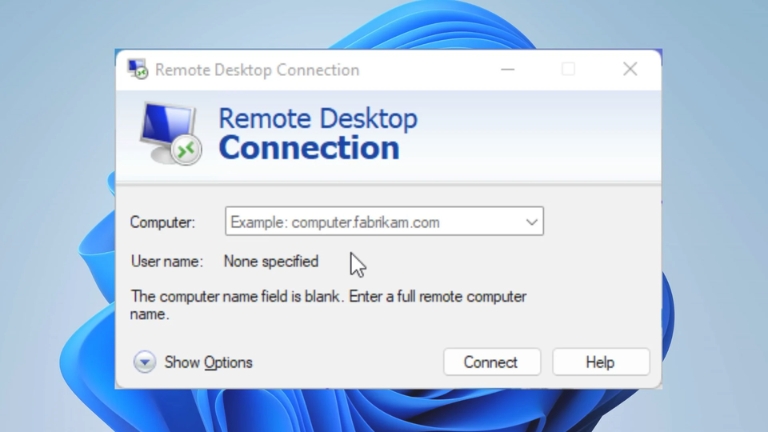
Are you trying to change your Remote Desktop settings, when you try to change certain settings related to Remote Desktop on your computer, you may encounter an error message stating that “Some settings are managed by your organization”.
This can be quite frustrating, especially if you are the sole administrator of your device. In this article, we will explore the potential causes behind this error and provide you with some ways to resolve it.
Understanding Remote Desktop
Remote Desktop is a feature developed by Microsoft that enables users to access a computer or network remotely.
It is a useful tool for businesses, allowing employees to work from home or another location. It can also be used for personal purposes, such as accessing a computer from another room in the same house.
The Message “Some Settings Are Managed by Your Organization”
If you encounter the message “Some settings are managed by your organization” when trying to change your Remote Desktop settings, it means that certain settings are being controlled by a group policy.
This can occur even if you are the administrator of your computer. Group policies are a set of rules enforced by an organization or network that can limit or control the settings of computers in the group.
Possible Causes of the Message
Here are the most common causes of the message “Some settings are managed by your organization”:
1. Group Policy Settings
As previously mentioned, certain settings may be controlled by a group policy, which means that as an individual administrator of your own computer, you may not be able to change them.
This is because the group policy takes priority over individual settings.
2. Windows Updates
Sometimes, the message “Some settings are managed by your organization” can appear after installing a Windows update.
This can happen if the update changes certain settings to comply with the group policy enforced by your organization or network.
3. Malware or Virus
The message “Some settings are managed by your organization” may also be caused by malware or a virus.
These malicious programs can change your settings and restrict you from making changes to your system.
It is important to regularly run reputable antivirus software to scan and remove any potential threats on your computer.
How to Fix the Issue
If you encounter the message “Some settings are managed by your organization” while trying to change your Remote Desktop settings, there are several steps you can take to fix the issue:
1. Check Group Policy Settings
To resolve the issue of “Some settings are managed by your organization”, you can follow these steps:
- Press the Windows key + R to open the Run dialog box.
- Type “gpedit.msc” and press Enter.
- In the Group Policy Editor, navigate to Computer Configuration > Administrative Templates > Windows Components > Remote Desktop Services > Remote Desktop Session Host > Connections.
- Check the settings under the Connections folder to see if any are configured.
- If any settings are configured, you will need to contact your organization or network administrator to change them.
By checking the group policy settings, you can determine if any policies are in place that are preventing you from making changes to your Remote Desktop settings. If you find that settings are configured, you will need to contact your organization or network administrator to make any necessary changes.
2. Update Windows
If you are facing the issue of “Some settings are managed by your organization” due to a Windows update, you can try updating your Windows operating system to see if it fixes the issue. Follow these steps:
- Click on the Start button and select Settings (gear icon).
- Click on “Update & Security” option.
- Click on “Check for updates” button.
- If updates are available, click on the “Download and install” option to update your Windows.
Once the update is complete, check if the issue has been resolved. If the issue persists, try the next step.
3. Run a Malware Scan
If you suspect that the message “Some settings are managed by your organization” is caused by malware or a virus, you should run a malware scan. Windows Defender, which is included in Windows 10, can scan your computer for malware. To run a scan, follow these steps:
- Click the Start button and select Settings.
- Click Update & Security.
- Click Windows Security.
- Click Virus & threat protection.
- Click Scan options.
- Select Full Scan and click Scan Now.
- If Windows Defender detects any malware, it will prompt you to take action.
Conclusion
By checking your group policy settings, updating Windows, or running a malware scan, you can usually fix the issue and regain control over your Remote Desktop settings.
And if none of these solutions work, you may need to contact your organization or network administrator to get the necessary permissions.
Always remember that Remote Desktop is a powerful tool that can be very useful for both personal and professional purposes, so understanding how it works and how to troubleshoot common issues is key to a productive and flexible computing experience.