Laptop touchpads are a convenient way to navigate your computer without having to use a mouse. However, if your touchpad is not working, it can be a real pain.
In this article, we will discuss some of the most common causes of touchpad malfunctions and provide step-by-step solutions to help you get your touchpad working again.
Why is my laptop Touchpad not working?
There are many reasons why your laptop touchpad might not be working. Here are some of the most common causes:
- Software Glitches: Minor software glitches or conflicts can disrupt the communication between the touchpad and the operating system.
- Physical Obstructions: Accumulation of dirt, debris, or foreign particles on the touchpad’s surface or sensors can hinder its responsiveness.
- Driver Outdatedness: Outdated or incompatible touchpad drivers can lead to performance issues and erratic behavior.
- Driver Corruption: Corrupted touchpad drivers due to software conflicts or other factors can result in malfunctioning.
- Device Settings: Accidental disabling of the touchpad or incorrect settings can render it unresponsive.
How to Fix Touchpad on Laptop: Step-by-Step Solutions
Now that we have identified the potential causes, let’s delve into the solutions that can effectively resolve touchpad problems:
1. Restart Your Laptop
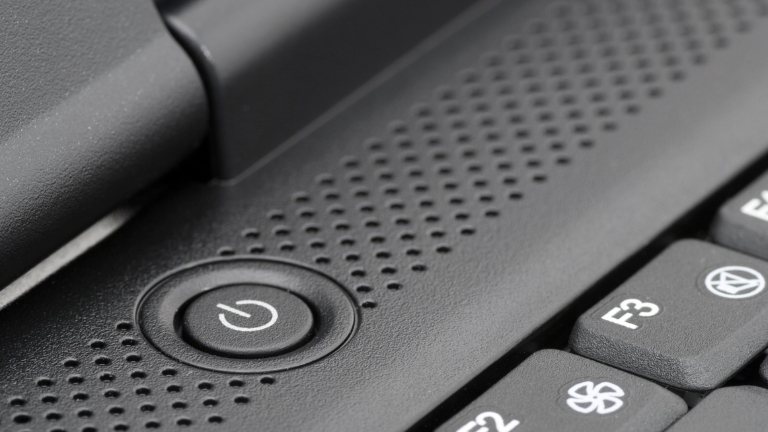
Simply restart your laptop to eliminate temporary software glitches causing touchpad issues. This can refresh the system and potentially resolve the problem.
2. Clean the Touchpad
Gently clean the touchpad’s surface using a soft, lint-free cloth or a cotton swab. Ensure the laptop is powered off and disconnected from any power source before cleaning. Avoid using liquids to prevent damage.
3. Enable the Touchpad
Navigate to the Settings app, then access Devices and locate the Touchpad settings. Ensure the Touchpad toggle is switched to the “On” position to reactivate the touchpad.
4. Update Touchpad Drivers
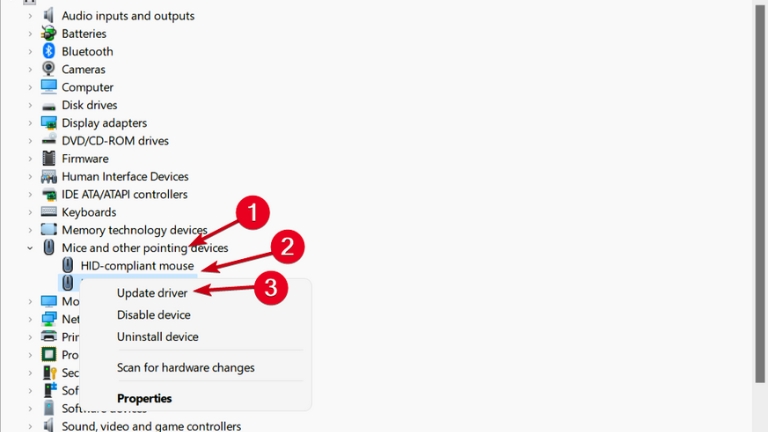
Visit the official website of your laptop’s manufacturer. Locate the “Support” or “Downloads” section, and search for the latest touchpad drivers compatible with your laptop model. Download and install the drivers following the provided instructions.
5. Reinstall Touchpad Drivers
Open the Device Manager by right-clicking on the Start button and selecting “Device Manager.” Expand the “Mice and other pointing devices” section. Right-click on the touchpad entry and choose “Uninstall device.” Restart your laptop, and Windows will automatically reinstall the touchpad drivers.
6. Adjust Touchpad Settings
Access the Control Panel or Settings app, depending on your system. Locate the “Mouse” or “Touchpad” settings. Adjust sensitivity, scrolling behavior, and other settings as per your preference.
7. Check for Physical Damage
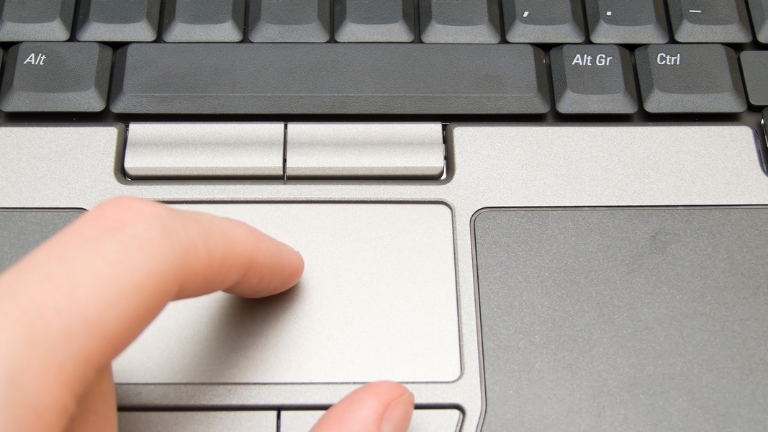
Examine the touchpad for any physical damage, such as cracks or defects. If damage is found, consider contacting your laptop manufacturer for repair options.
8. Perform System Check
Depending on your laptop model, initiate a system diagnostic test. Follow the prompts and recommendations provided by your laptop’s built-in diagnostic tools to identify and address hardware or software issues affecting the touchpad.
9. Scan for Malware

Run a full malware scan using your preferred antivirus software. Ensure that the scan encompasses all files and folders to eliminate the possibility of malicious software interfering with touchpad functionality.
10. Create a New User Profile
Create a new user profile on your laptop. Log in to the new profile and test the touchpad’s performance. If the touchpad functions properly in the new profile, the issue may be specific to your previous user profile.
11. Roll-Back Drivers
If updating touchpad drivers worsens the issue, consider rolling back to a previous driver version. Open the Device Manager, right-click on the touchpad entry, select “Properties,” navigate to the “Driver” tab, and choose “Roll Back Driver” if available.
Conclusion
In conclusion, a malfunctioning touchpad can be a frustrating experience, but it doesn’t have to be a permanent one. By following the steps in this article, you can troubleshoot and fix most touchpad problems. Remember to be patient and systematic, and don’t be afraid to ask for help if you need it. With a little effort, you can get your touchpad working again and enjoy all the convenience it has to offer.