Direct Answer
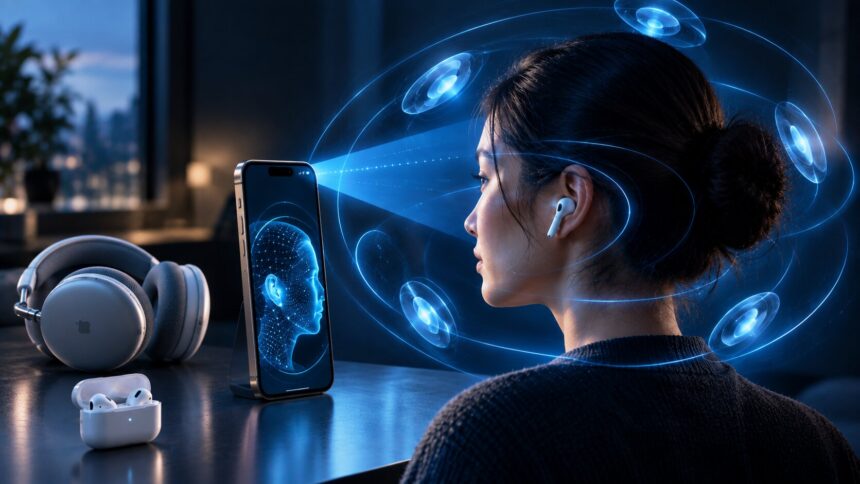
To set up Personalized Spatial Audio, pair your compatible AirPods or Beats with an iPhone featuring a TrueDepth camera, open your headphone menu in Settings, and complete the guided camera mapping of your face and ears. Your customized acoustic profile then syncs seamlessly across all supported Apple devices using your Apple Account.

A Practical Troubleshooting Order
Confirm Bluetooth connection, compatible hardware, current software, and supported content before repeating the scan. If the option is missing, disconnect and reconnect the headphones and reopen their settings page.
If the profile feels wrong, stop using it and create a fresh scan with better lighting and slower guided movements.
System Requirements for Custom Profiles
Personalized Spatial Audio needs compatible AirPods or Beats headphones and an iPhone with a TrueDepth camera for the initial scan. Supported playback can extend to compatible iPhone, iPad, Mac, Apple TV, and Apple Vision Pro devices.
- An iPhone equipped with a TrueDepth front-facing camera.
- Compatible AirPods or Beats headphones (such as AirPods Pro, AirPods Max, or Beats Studio Pro).
- The latest iOS and headphone firmware updates installed.
- Streaming audio or video formatted in Spatial Audio or Dolby Atmos.
How to Scan Your Features and Build Your Profile
- Place your supported headphones in your ears and confirm they are actively connected to your iPhone.
- Launch the Settings app on your iPhone.
- Select your connected headphones listed near the top of the main menu.
- Scroll down, choose Personalized Spatial Audio, and select the setup prompt.
- Center your face in the camera frame and follow the visual guide to complete the front scan.
- Slowly tilt your head side-to-side so the TrueDepth camera can map your left and right ears.
- Finish the guided setup and play a test track to evaluate your customized soundscape.
The iPhone displays real-time positioning cues during the process, making it simple to complete the scan without extra equipment or assistance.
How to Switch Spatial Audio Modes
Once your profile is active, you can easily adjust how sound moves around you. Swipe down to open Control Center, press and hold the Volume slider, then tap the Spatial Audio icon.
- Head Tracked: Sound stays anchored to your screen, shifting dynamically as you move your head.
- Fixed: Delivers full 3D surround depth without shifting the soundstage when you turn your head.
- Off: Disables 3D spatial processing and reverts to traditional two-channel stereo.
While Personalized Spatial Audio tunes sound frequencies to your unique ear shape, these Control Center settings manage motion tracking behavior during playback.
Supported Media Formats and Apps
Custom spatial profiles deliver their most noticeable benefits when watching movies, streaming series, or viewing video calls mixed in Dolby Atmos. Dialogue and atmospheric effects appear to originate from specific locations around your room rather than directly inside your headphones.
For music, results depend on how the track was mixed in the studio. Testing various songs across different genres helps you decide whether a spatial presentation outperforms standard stereo.
A Diagnostic Path When the Feature Is Missing
Start by deciding whether the problem is compatibility, connection, scanning, or playback. Treating every symptom as a failed scan wastes time and can hide a simpler Bluetooth or software issue.
If the menu does not appear
Confirm the exact AirPods or Beats model supports Spatial Audio, verify that the iPhone has a TrueDepth camera, update iOS, and reconnect the headphones. Then reopen the dedicated headphone page in Settings.
If the face or ear scan will not finish
Move to even lighting, remove anything blocking the ears, hold the iPhone at the guided distance, and follow the arrows slowly. Restart the scan instead of forcing a poor measurement through repeated errors.
If the profile exists but the sound seems unchanged
Use verified Dolby Atmos or Spatial Audio content, raise the volume to a comfortable level, and compare Head Tracked, Fixed, and Off on the same scene. Ordinary stereo content may not reveal a meaningful difference.
If head tracking feels distracting
Switch to Fixed mode rather than deleting the profile. Fixed mode keeps the personalized immersive mix but stops the apparent soundstage from shifting with every head movement.
If the profile seems inaccurate
Remove the existing profile and create a fresh one. A clean rescan is more useful than repeatedly changing playback modes around a profile that does not match the listener well.
Frequently Asked Questions
Can Personalized Spatial Audio be created without an iPhone?
No, an iPhone equipped with a TrueDepth camera is required to capture the initial face and ear scan. However, once established, your profile syncs automatically to your Mac, iPad, or Apple TV via your Apple Account.
Are facial setup images stored as photos?
No, Apple processes camera data locally on your device to build the acoustic profile, and the captured images are never saved to your camera roll.
How do you delete a Personalized Spatial Audio profile?
Open Settings on your iPhone, select your connected headphones, tap Personalized Spatial Audio, and select the option to stop using the profile. You can recreate a new profile whenever you like.
The Bottom Line
Setting up Personalized Spatial Audio takes just a few minutes and provides an audio profile customized to your physical head shape. Confirm your device compatibility, complete the camera scan, and test both Head Tracked and Fixed modes with your favorite media.
Source: Apple. Read the original article.
Read more:
- How to Master Apple Notes AI Features
- How to Use Apple’s Live Rewind Audio Intelligence?
- Related reading on techharvey.com: Stop Apple Music from autoplaying; Set up a VPN on iPhone.